Google Classroom
Accessing Google Classroom via RM Unify
Step 1: Log in to RM Unify
- Open your web browser and go to your school's RM Unify by clicking the links below.
- Enter your username and password.
- Click Sign In.
Step 2: Locate the Google Classroom Tile
- Once logged in, you’ll see your RM Unify Launchpad.
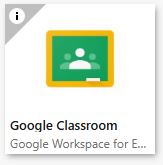
- Look for the Google Classroom tile.
- If you don’t see it, click Add Tile (usually a “+” icon) and search for Google Classroom.
- Add it to your Launchpad for quick access.
Step 3: Sign in to Google Classroom
- Click the Google Classroom tile.
- You’ll be redirected to Google’s Classroom page.
Step 4: Access Your Classes
- After signing in, you’ll see your Google Classroom dashboard.
- Click on the class you want to join.
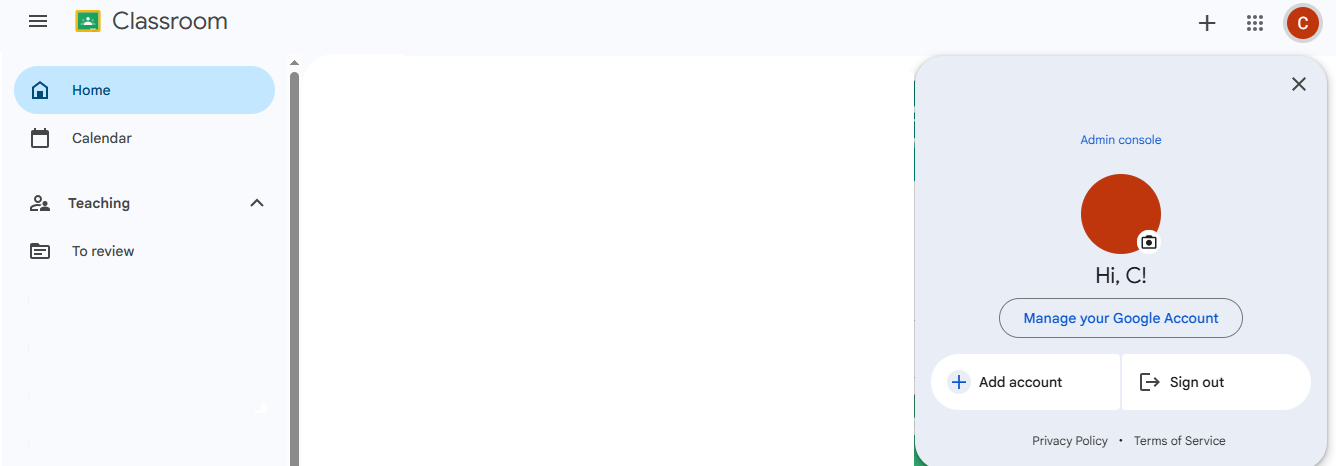
Here’s a useful tip if you cannot see your classroom – Check the Profile Icon
When a child is in Google Classroom:
- Look in the top-right corner of the screen.
- You should see a profile picture or initial.
- Click on it – the email address will appear.
- Make sure it matches their school Google account (e.g., studentusername@schooldomain.com).
Extra Tip:
If the wrong account is signed in:
- Click Sign out.
- Then go back to RM Unify and click on the Google Classroom tile again.